

How to Stop the Xerox B115 Printer from Automatically Printing Configuration Page on Startup
Background
The Xerox B115 printer is set to automatically print a configuration page upon startup by default each time the device powers on or reboots. This page provides details regarding the printer status, settings, and supply levels. While useful for troubleshooting, automatic printing can be inconvenient in daily office use by unnecessarily wasting paper and toner. Here is the step-by-step guide explaining how to disable it.
Solution
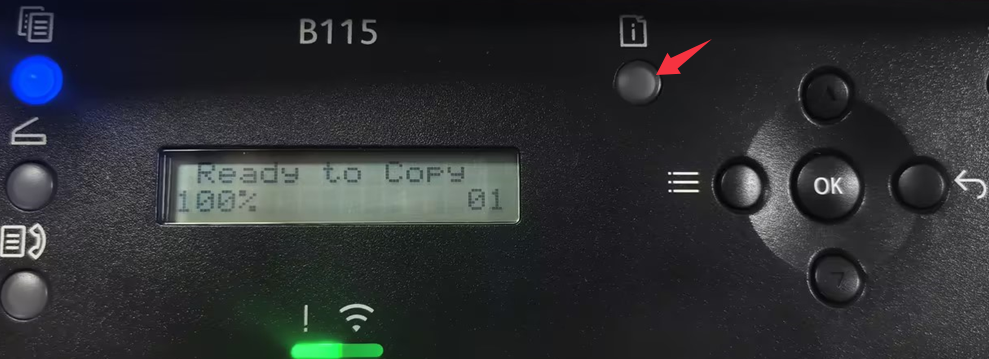
1. Access the [Machine Status] screen.
Press the button shown in the figure below to access the [Machine Status] screen.
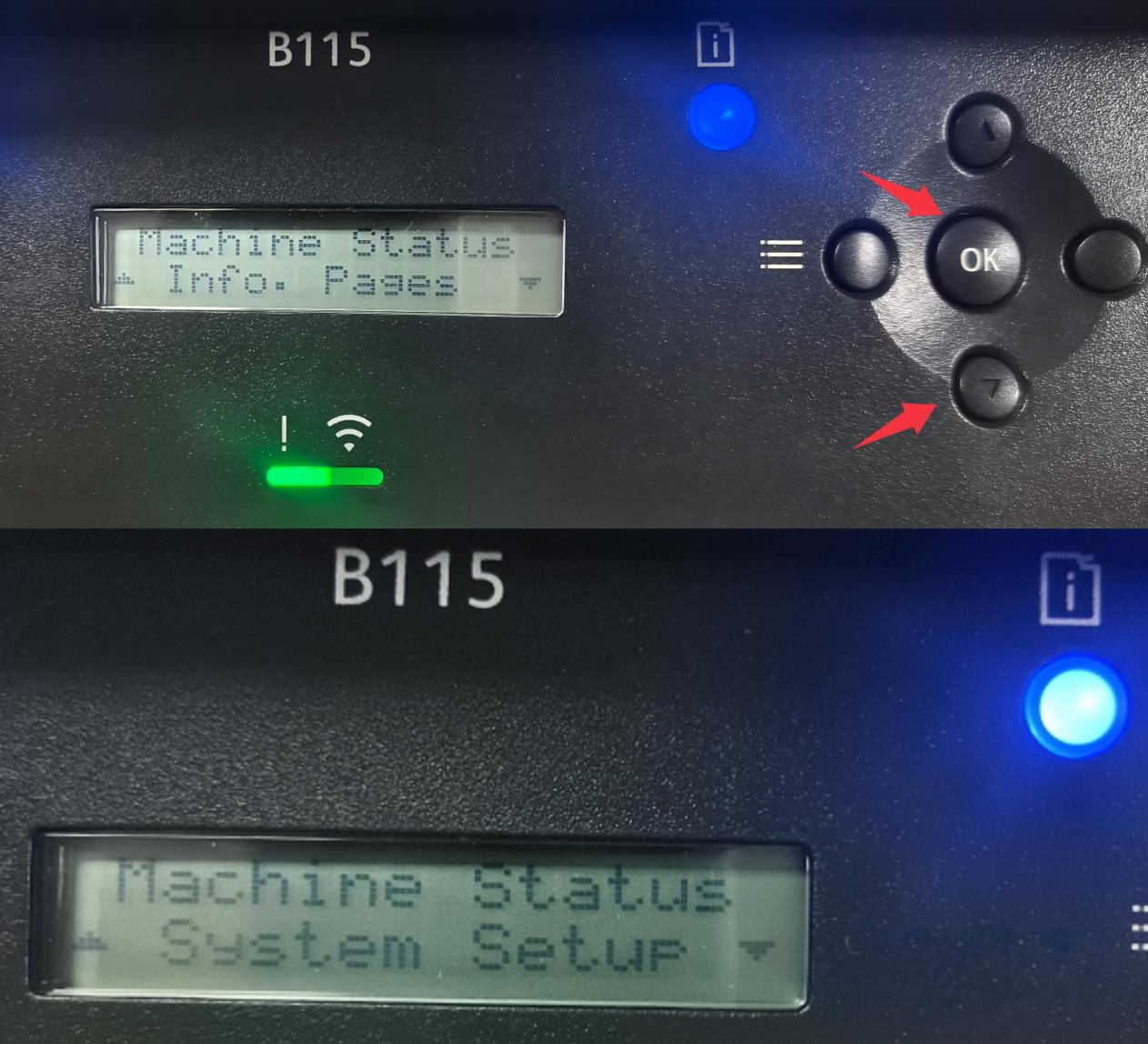
2. Access the [System Setup] screen.
Press the [▼] button three times to locate the [System Setup] menu, then press [OK] to access this screen.
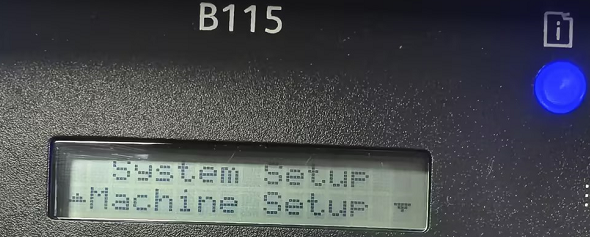
3. Access the [Machine Setup] screen.
Select [Machine Setup] in the [System Setup] menu, then press [OK].
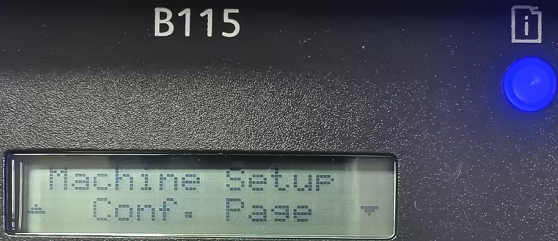
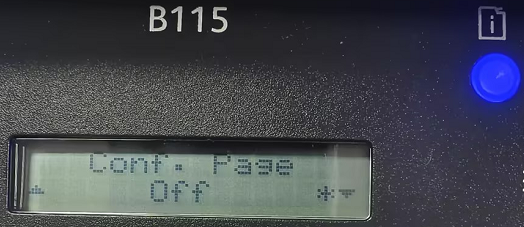
4. Access the [Conf. Page] screen.
Press the [▼] button ten times to locate the [Conf. Page] menu, then press [OK] to access this screen.
5. Disable the Configuration Page printing.
The default setting for [Conf. Page] is [On]. Press the [▼] button to change it to [Off], then press [OK]. Restart the printer to confirm that the configuration page no longer pirnts automatically at startup.
Summary
While the automatic configuration page printing helps engineers quickly diagnose device status, it often degrades the experience for end-users and increases supply costs in daily office use. By following the steps above, you can effectively resolve this startup auto-printing issue.
If needed for troubleshooting, this setting can be enabled again by following the same steps and changing [Conf. Page] back to [On].
All images in this article are for reference only; actual products may vary. All brand names and trademarks not owned by our company are the property of their respective owners and are used for reference purposes only.
Please follow Zhono and subscribe on LinkedIn or Facebook. For more information, please contact your sales representative or send an email to info@zhono.com.
Related Article
-
Solution to the “Replace MK” Message on Kyocera Printers
29/10/2026 -
Zhono First to Address Firmware Upgrade Issues for Kyocera TK-3400 Series
15/09/2026 -
Zhono Chips Confirmed Compatible with Firmware Upgrades from Multiple Brands in September
28/10/2026 -
HP Printer Shows "Unauthorized Cartridges": How to Fix It
30/07/2026 -
Zhono Chips Confirmed Compatible with Firmware Upgrades from Multiple Brands in June
15/07/2026


