

Solution to the “Replace MK” Message on Kyocera Printers
Background
Kyocera ECOSYS PA4000wx printers may display a “Replace MK” message during normal use. On some printers, however, the message may persist even after the Maintenance Kit has been replaced, preventing normal printing.
This article explains how to resolve the “Replace MK” message on the Kyocera ECOSYS PA4000wx, with practical troubleshooting steps for service engineers.
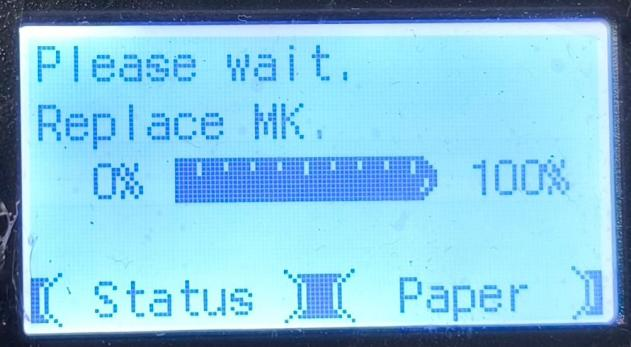
Figure 1: Message “Replace MK”
Solution
Printer Model: Kyocera ECOSYS PA4000wx High-Speed Monochrome Laser Printer
Issue: The printer displays a “Replace MK” message. Normally, the message should disappear after the Maintenance Kit is replaced. However, on some printers, the message persists even after a new Maintenance Kit has been installed, preventing normal printing.
Solution: Follow the steps below to reset the life counter and clear the message.
Step 1: Enter Maintenance Mode
From the printer’s home screen, enter [10871087] to access Maintenance Mode. Then press the Menu button on the printer.
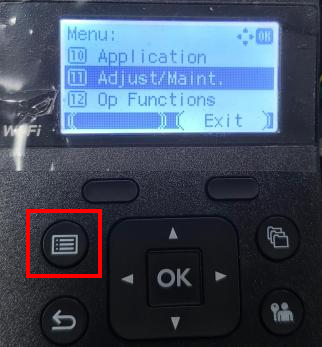
Figure 2: Enter Maintenance Mode
Step 2: Reset the Life Counter
From the menu, navigate to Adjust/Maint. → Service Setting → Drum, then select Yes.
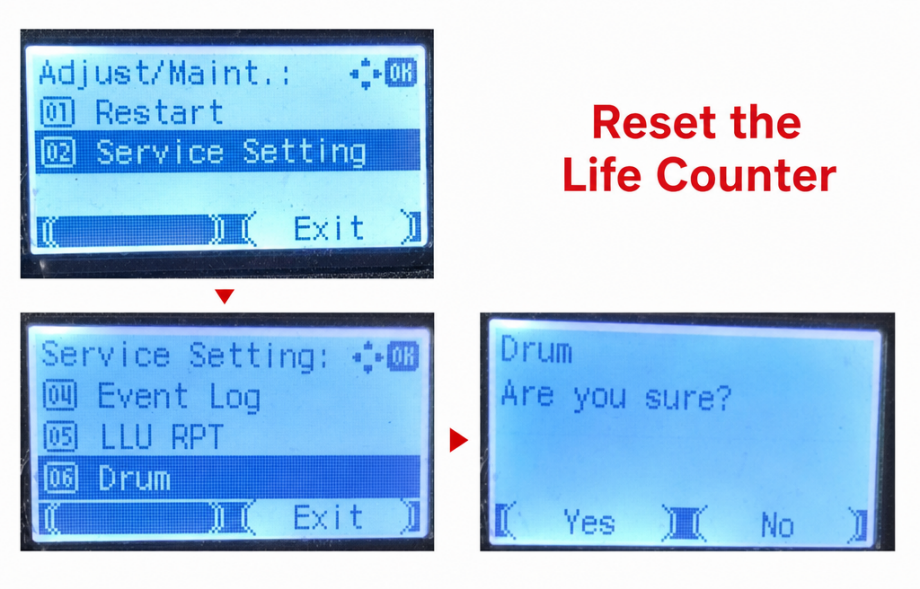
Figure 3: Reset the Life Counter
Step 3: Save the Settings and Restart the Printer
Press the OK button to save the settings. The printer will restart automatically. Once it restarts, the “Replace MK” message should disappear, and the printer should resume normal operation.
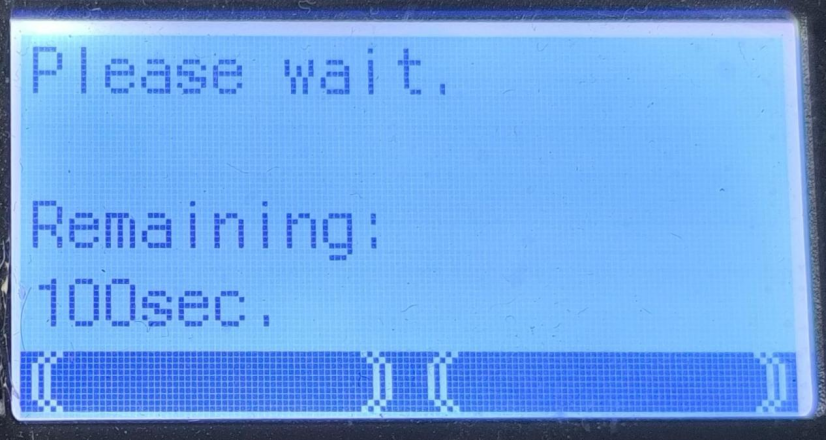
Figure 4: Save the Settings
Conclusion
Replacing the Maintenance Kit should normally clear the “Replace MK” message. If the message persists after installing a new Maintenance Kit, enter Maintenance Mode and reset the Life Counter to resolve the issue.
If you have any questions, please contact your sales representative or send your queries to info@zhono.com.
All images in this article are for reference only; actual products may vary. All brand names and trademarks not owned by our company are the property of their respective owners and are used for reference purposes only.
Related Article
-
Zhono First to Address Firmware Upgrade Issues for Kyocera TK-3400 Series
15/09/2026 -
Zhono Chips Confirmed Compatible with Firmware Upgrades from Multiple Brands in September
28/10/2026 -
HP Printer Shows "Unauthorized Cartridges": How to Fix It
30/07/2026 -
Zhono Chips Confirmed Compatible with Firmware Upgrades from Multiple Brands in June
15/07/2026 -
Zhono Chips Confirmed Compatible with Firmware Upgrades from Multiple Brands in May
23/06/2026


