

HP Printer Shows "Unauthorized Cartridges": How to Fix It
Background
Customers have reported that HP W2180 series printers display "Unauthorized Cartridges" or "Protected Cartridges" messages. In most cases, this occurs because the printer's Authorized Cartridge Policy or Cartridge Protection feature has been enabled.
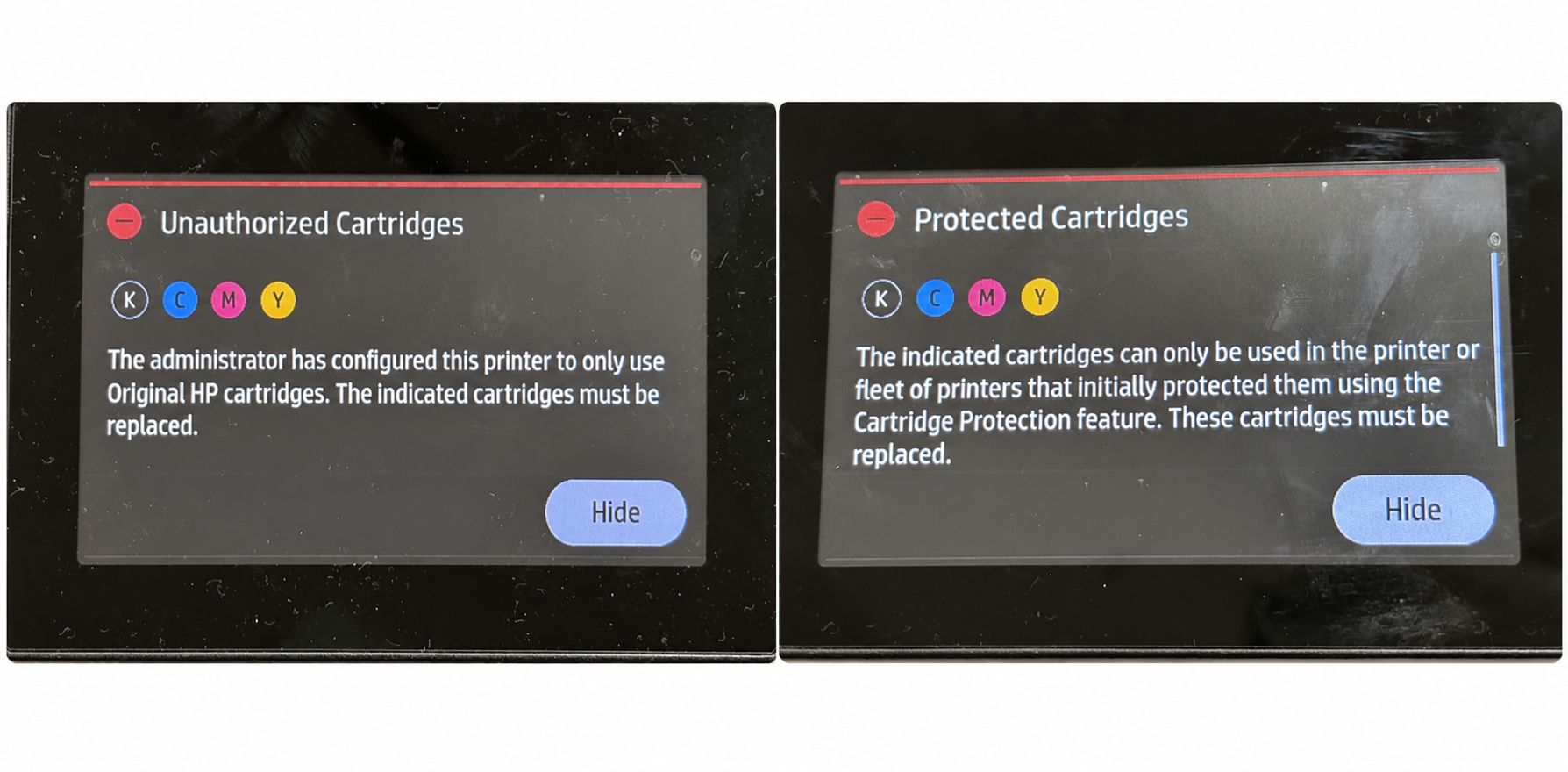
Figure 1: Messages
When the Authorized HP Cartridge Policy is enabled, supply recognition is restricted, prompting an "Unauthorized Cartridges" message when third-party supplies are detected.
Enabling the Cartridge Protection feature binds the currently installed cartridge to a specific printer. If installed in another printer, the protected cartridge will trigger the "Protected Cartridges" message.
This guide uses the HP Color LaserJet Pro 3288dw as an example to demonstrate how to disable the Authorized HP Cartridge Policy and Cartridge Protection features. The same steps can also be applied to other HP printer models with similar menu settings.
Message 1
Unauthorized Cartridges
Step 1: From the printer's Home screen, navigate to Menu > Settings > Supplies.
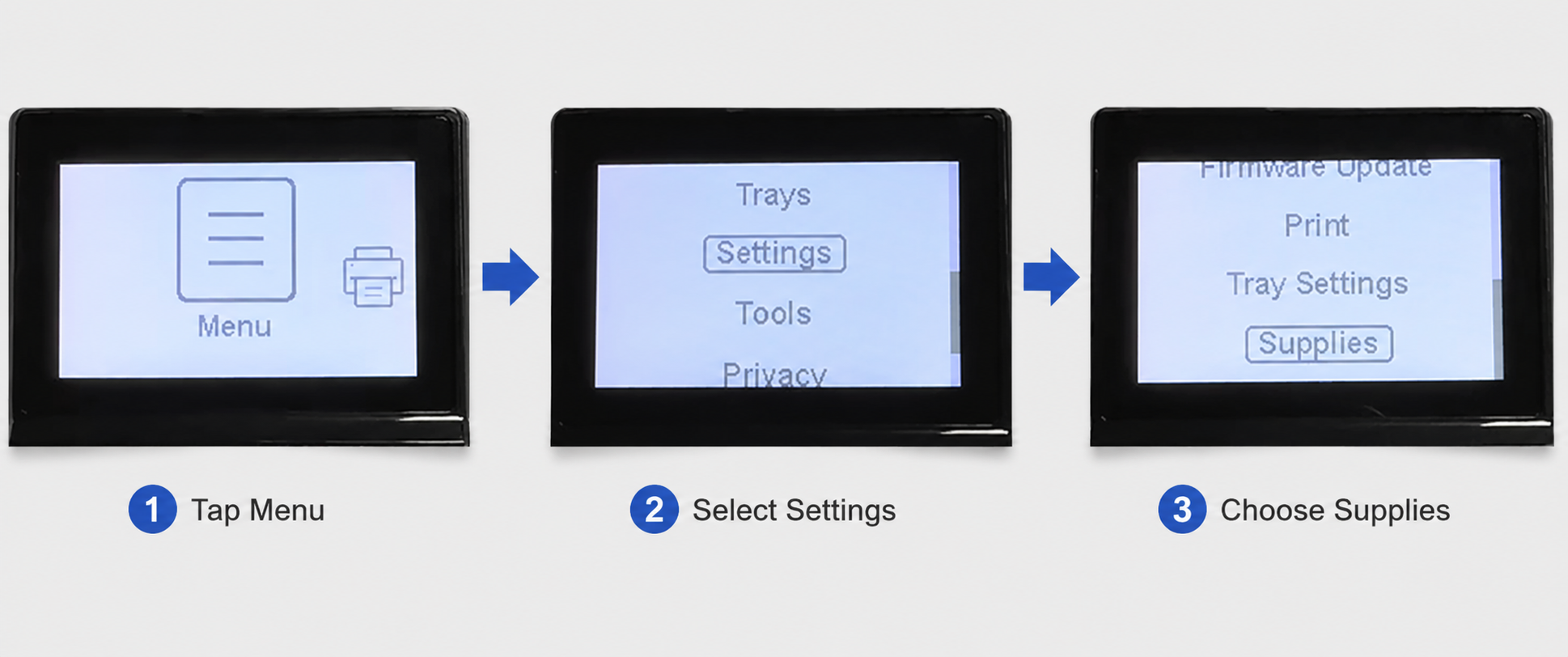
Figure 2: Accessing the Supplies Page
Step 2: Locate Authorized HP Cartridge Policy and disable it.
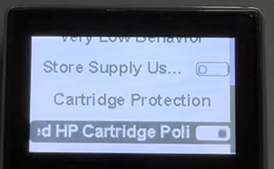
Figure 3: Disabling the Authorized HP Cartridge Policy
Message 2
Protected Cartridges
Step 1: Replace the cartridge chip, then reinstall the cartridge into the printer where it was originally installed
Step 2: From the printer's Home screen, navigate to Menu > Settings > Supplies.
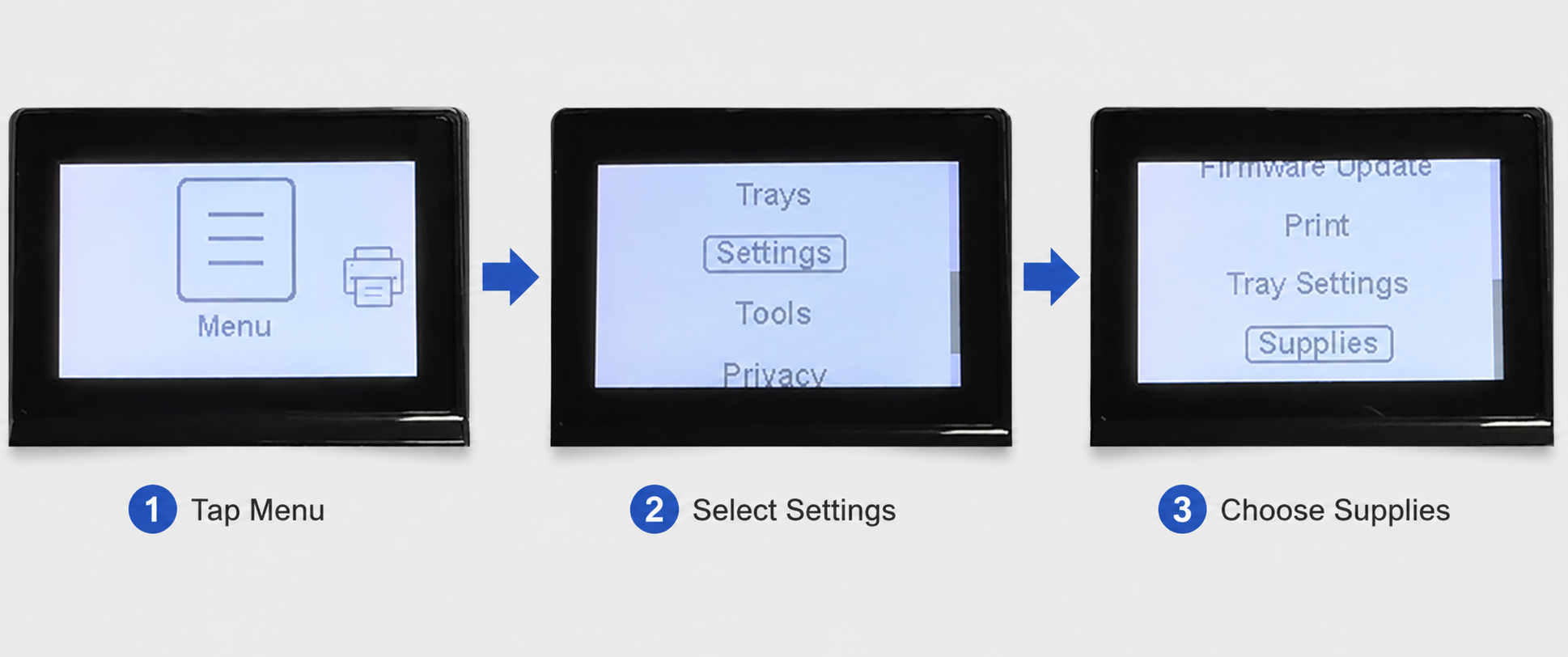
Figure 4: Accessing the Supplies Page
Step 3: Locate Cartridge Protection and disable it.
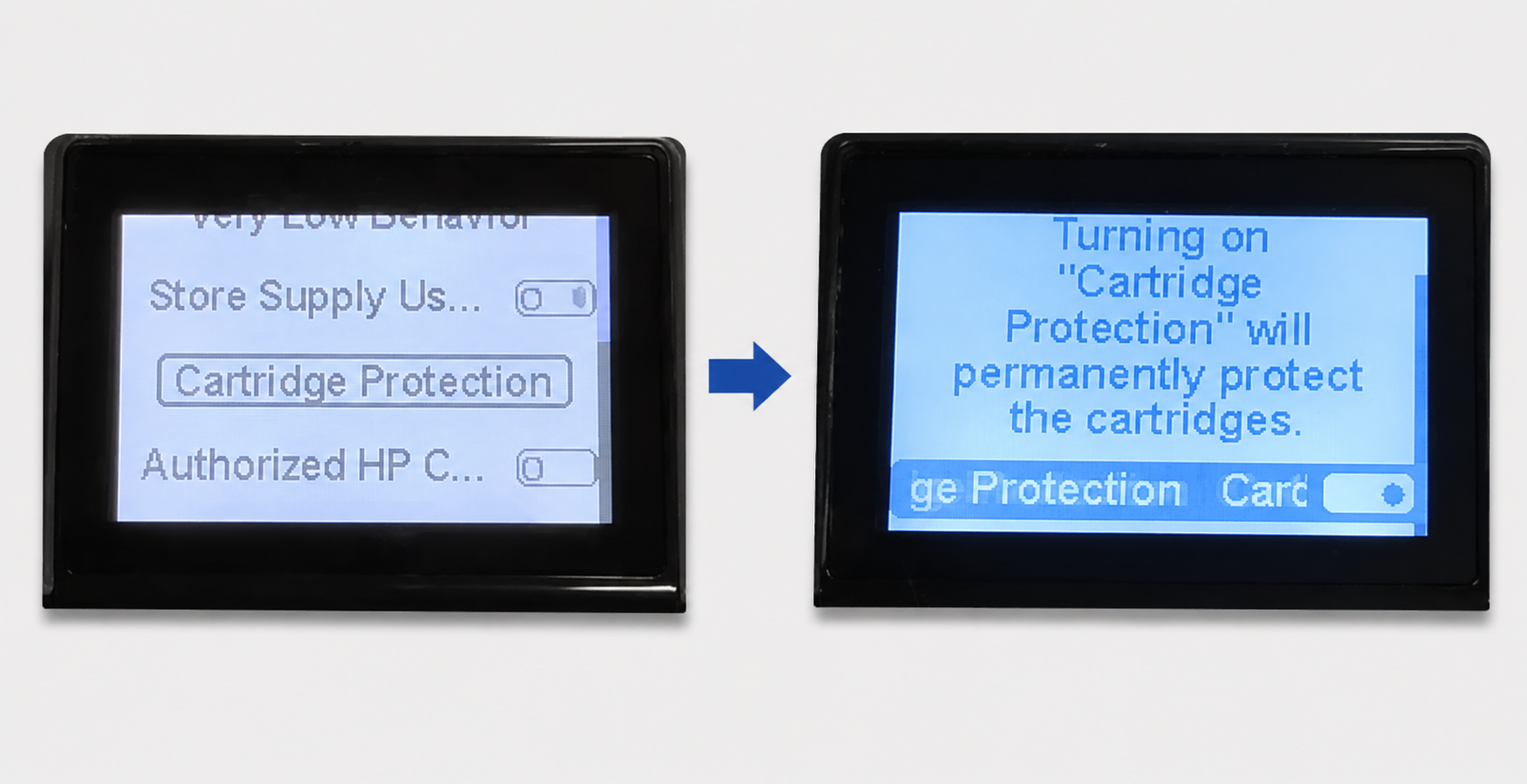
Figure 5: Disabling the Cartridge Protection
Summary
When HP printers prompt "Unauthorized Cartridges" or "Protected Cartridges", check the Authorized HP Cartridge Policy and Cartridge Protection settings first. Disabling these features often solves the issue immediately.
Related Article
-
Solution to the “Replace MK” Message on Kyocera Printers
29/10/2026 -
Zhono First to Address Firmware Upgrade Issues for Kyocera TK-3400 Series
15/09/2026 -
Zhono Chips Confirmed Compatible with Firmware Upgrades from Multiple Brands in September
28/10/2026 -
Zhono Chips Confirmed Compatible with Firmware Upgrades from Multiple Brands in June
15/07/2026 -
Zhono Chips Confirmed Compatible with Firmware Upgrades from Multiple Brands in May
23/06/2026


